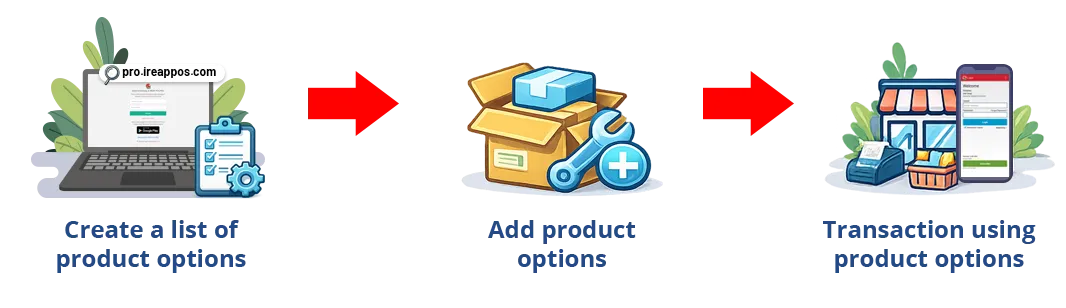


Product Options (Modifiers) are additional choices that customers can select when purchasing a product.
The Product Options (Modifier) feature in iREAP PRO allows you to add various customizable options to a product during transactions. This feature is especially useful for adjusting customer orders, for example on beverage menus such as Americano Coffee with options like less sugar, normal sugar, or high sugar, as well as additional toppings that may include extra charges.
By using product options, the sales process becomes more flexible and organized, while also helping cashiers record order variations without creating multiple new items.
Examples of Product Option (Modifier) Usage:
NOTE:
Currently, the Product Option feature does not support separate stock management. The added options only function as additional selections during transactions and may increase the selling price, but they are not treated as individual stock items.
In other words:
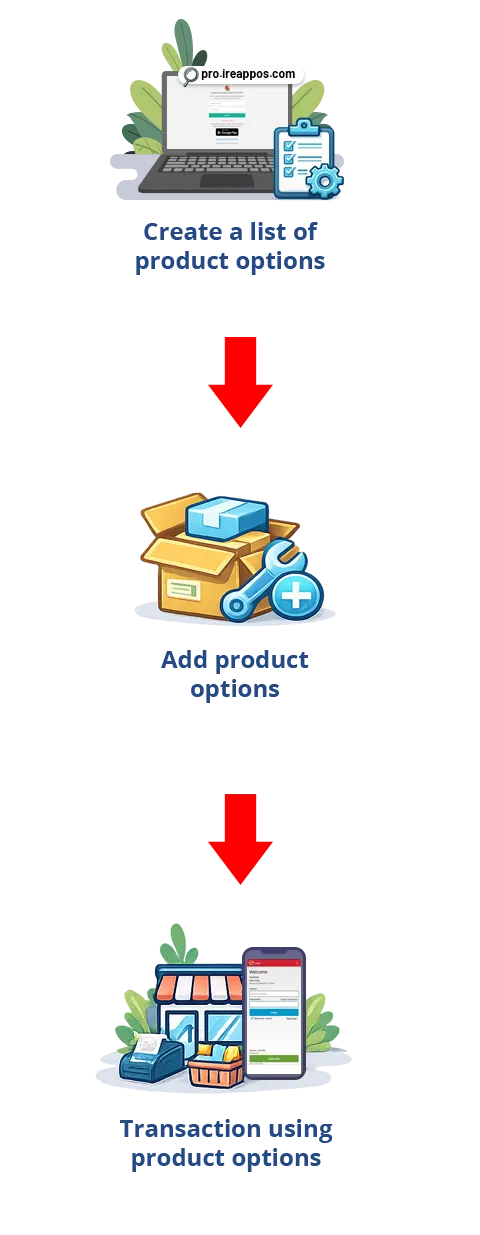
Main Steps:
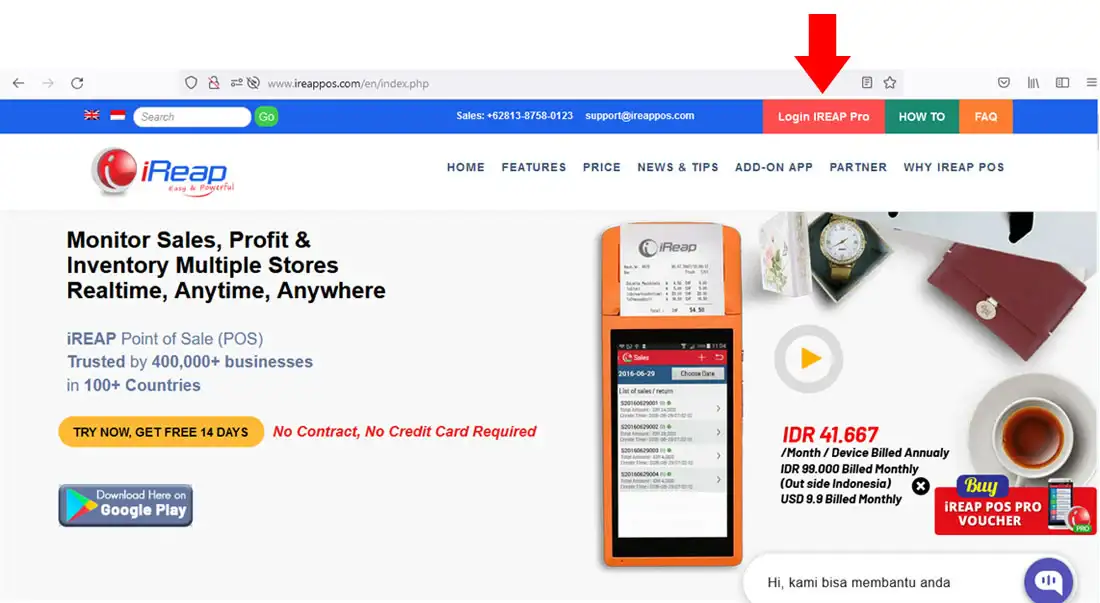
Open browser and go to www.ireappos.com

Click LOGIN IREAP PRO
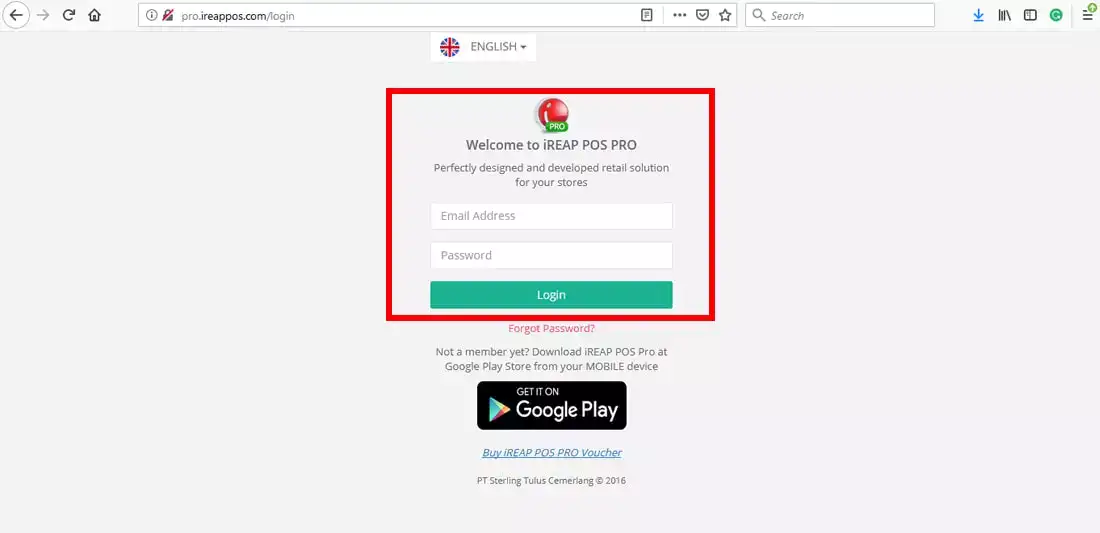
Alternatively, you can directly access pro.ireappos.com/login

Enter your email address and password (Administrator Account). Use the email account that was first registered for iREAP POS Pro.
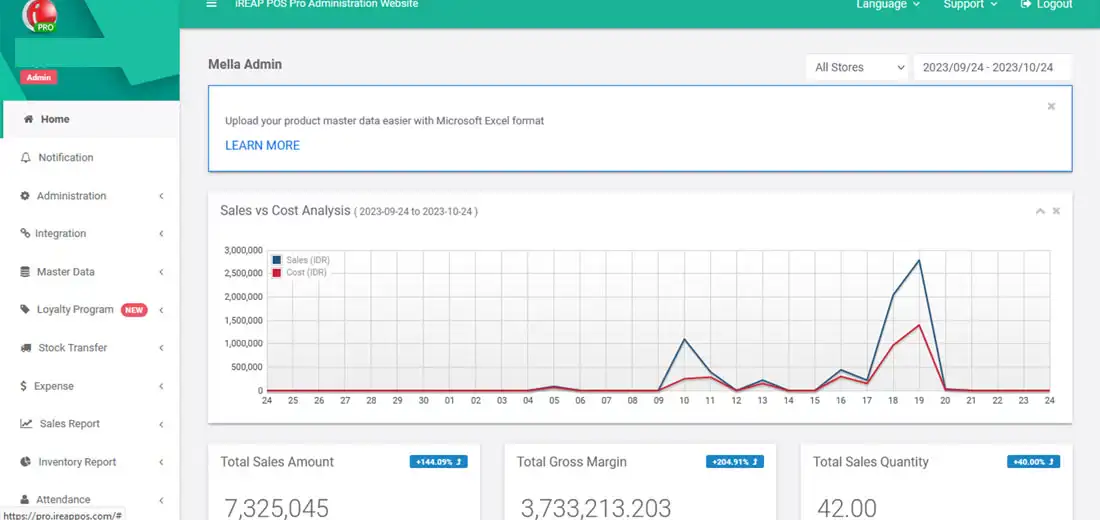
You will enter the main page of your iREAP POS Pro account.
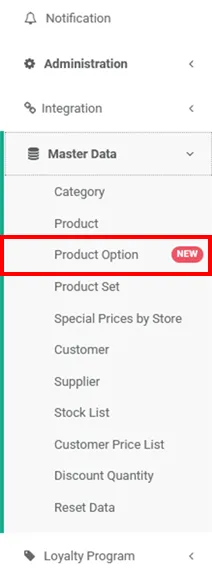
Go to Master Data > Product Options.
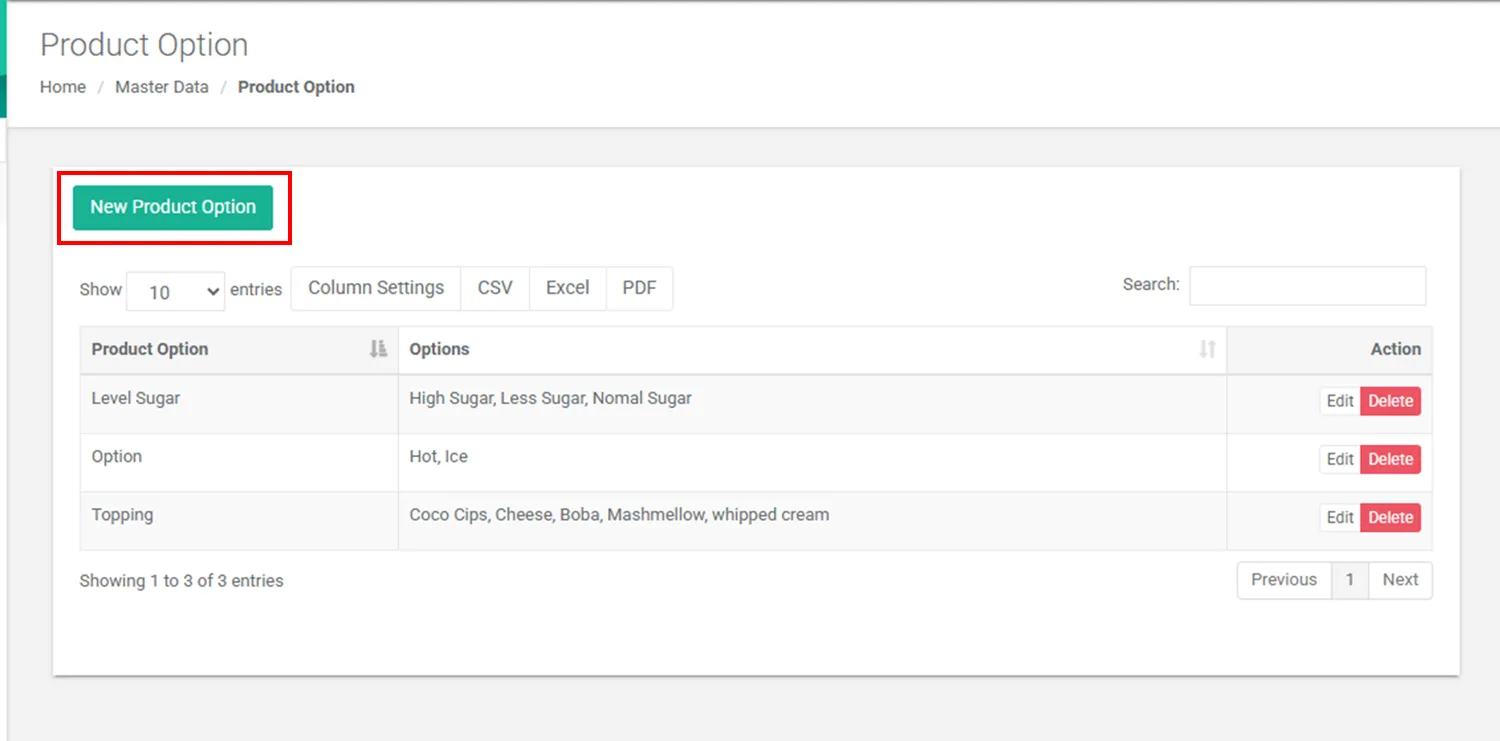
Click the New Product Option button.
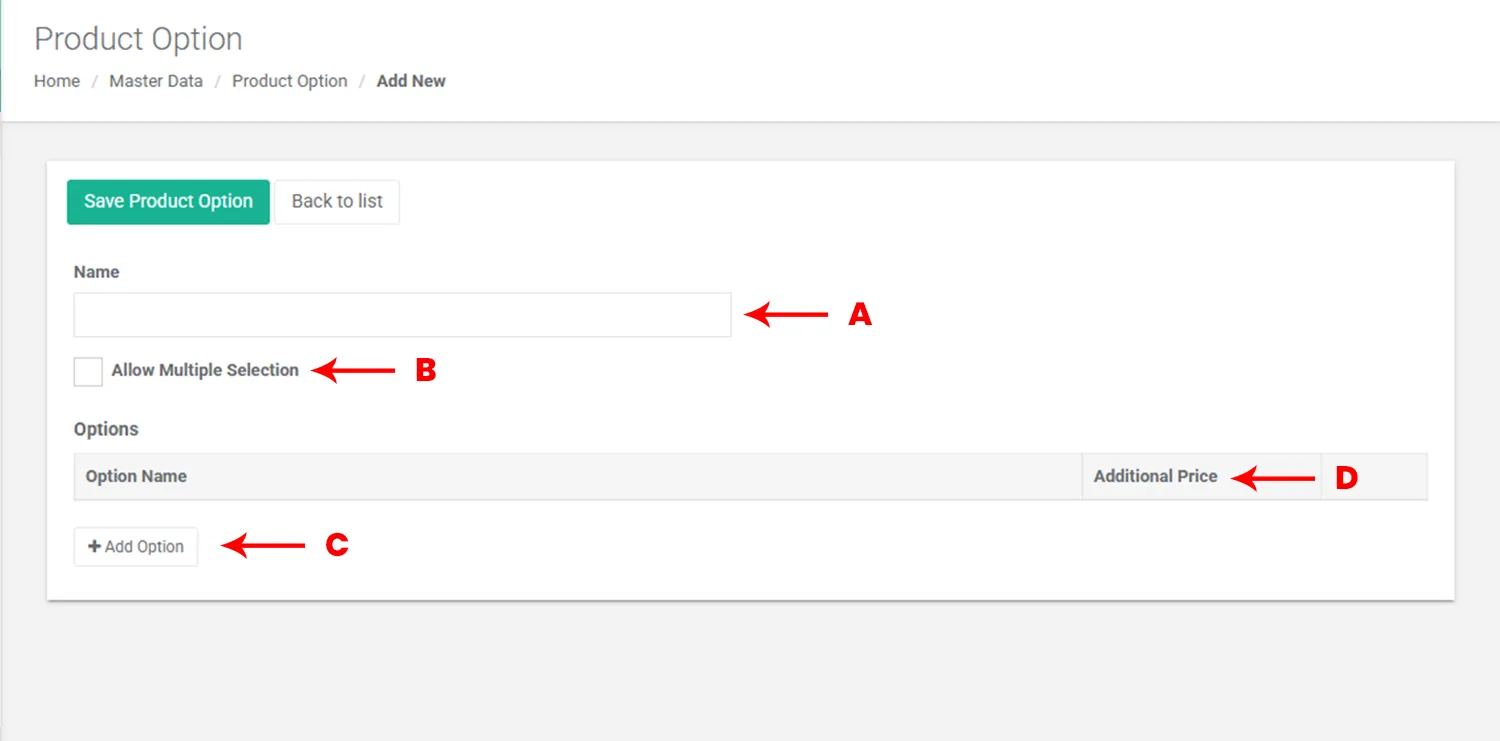
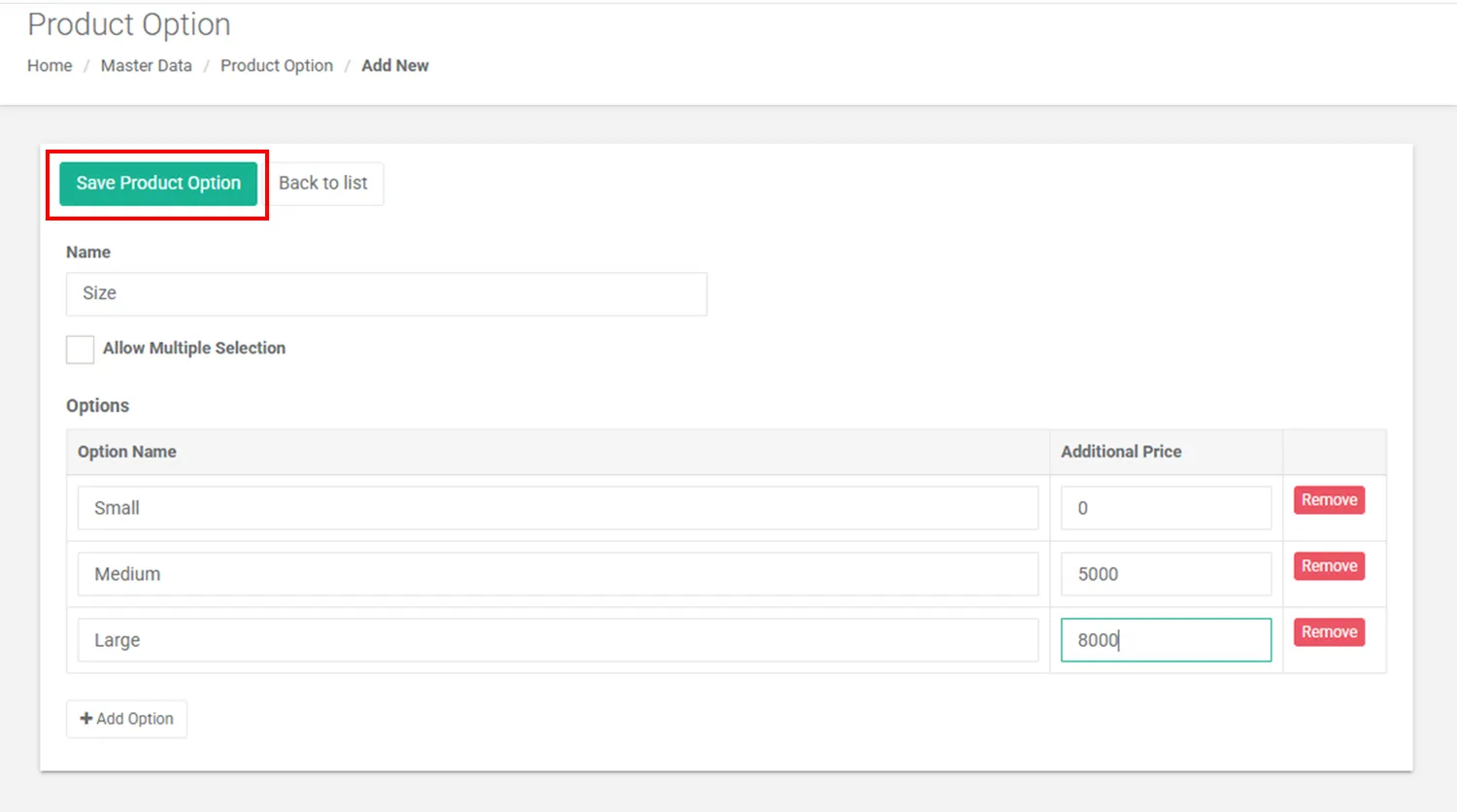
On the Product Option page, fill in the Product Option Name, then click the Add Option button to create the list of choices.
Click the Save Product Option button to save the modifier you created.
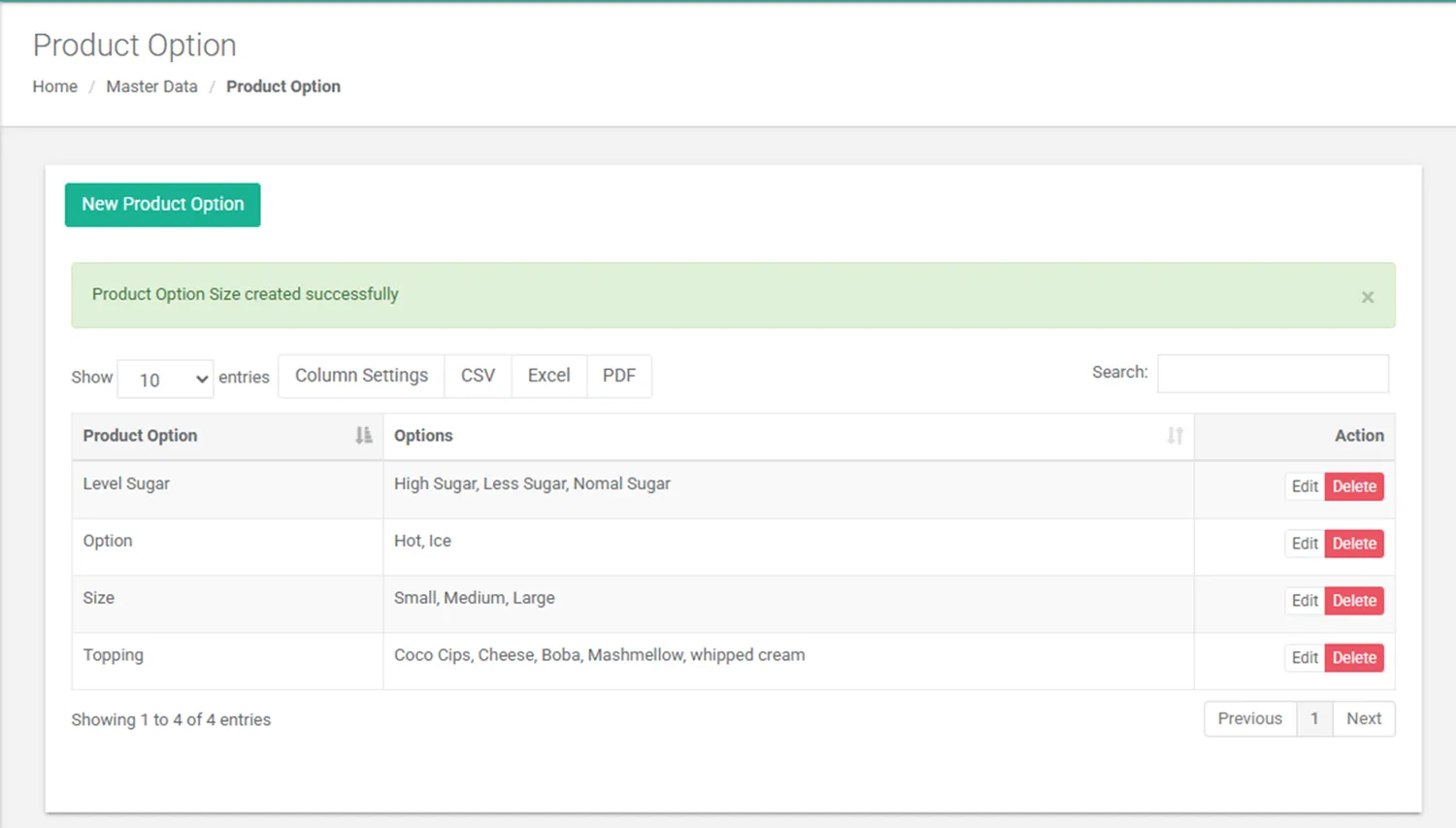
The Product Option List has been successfully created.
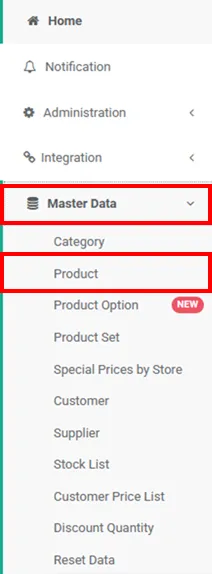
Go to Master Data > Products.
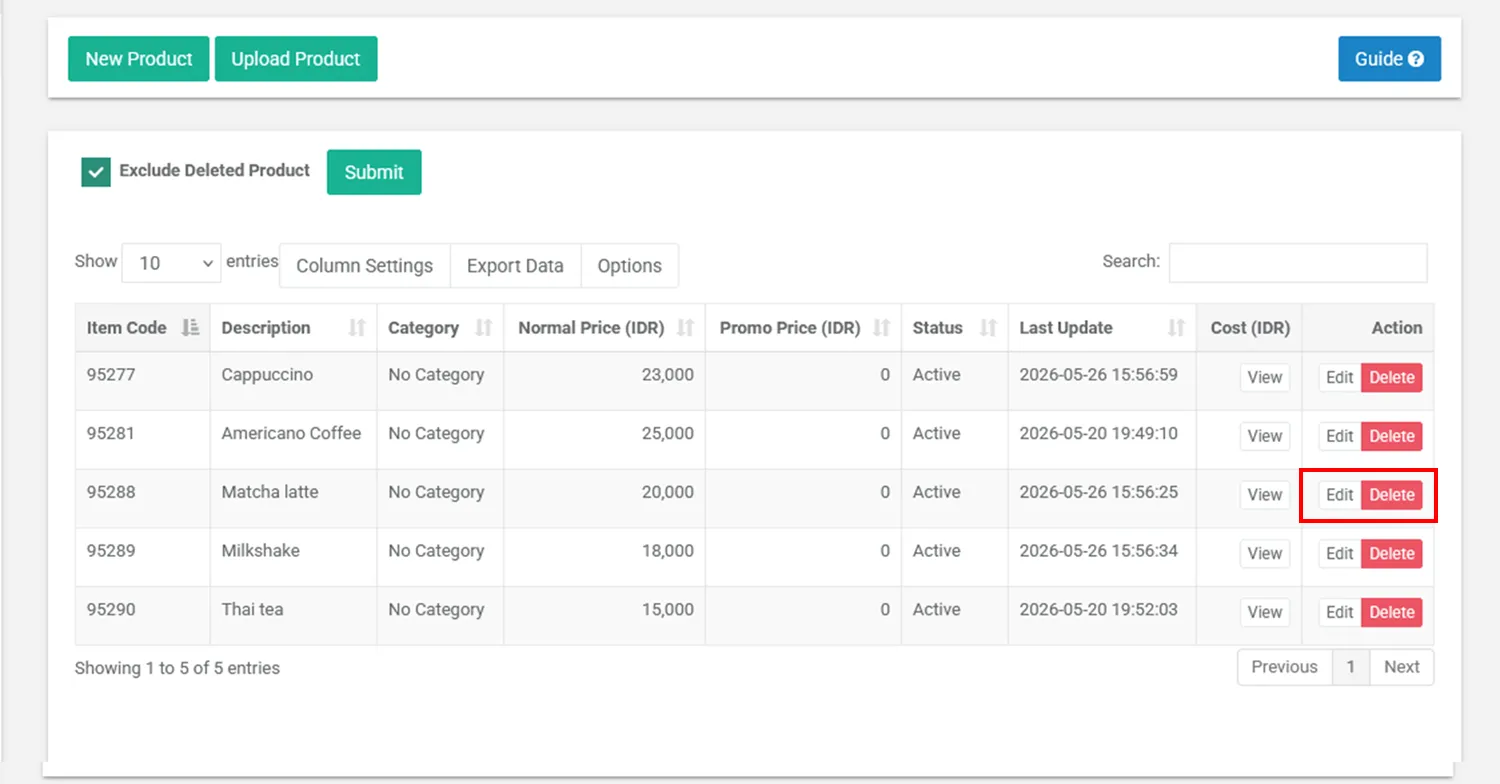
Select the product you want to add product options (modifiers) to, then click Edit.
Scroll down until you find the Product Modifiers section, then add the desired options.
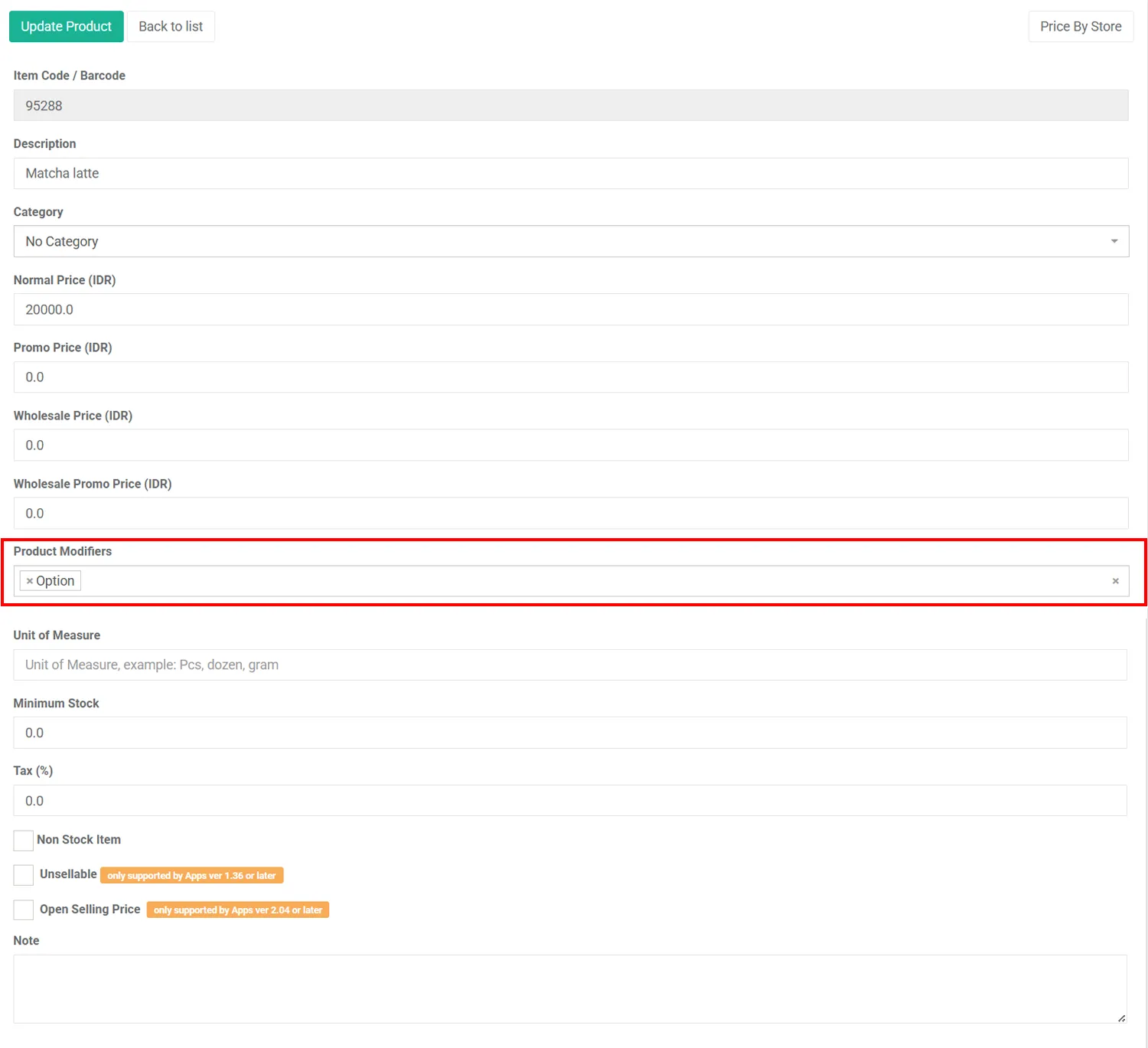
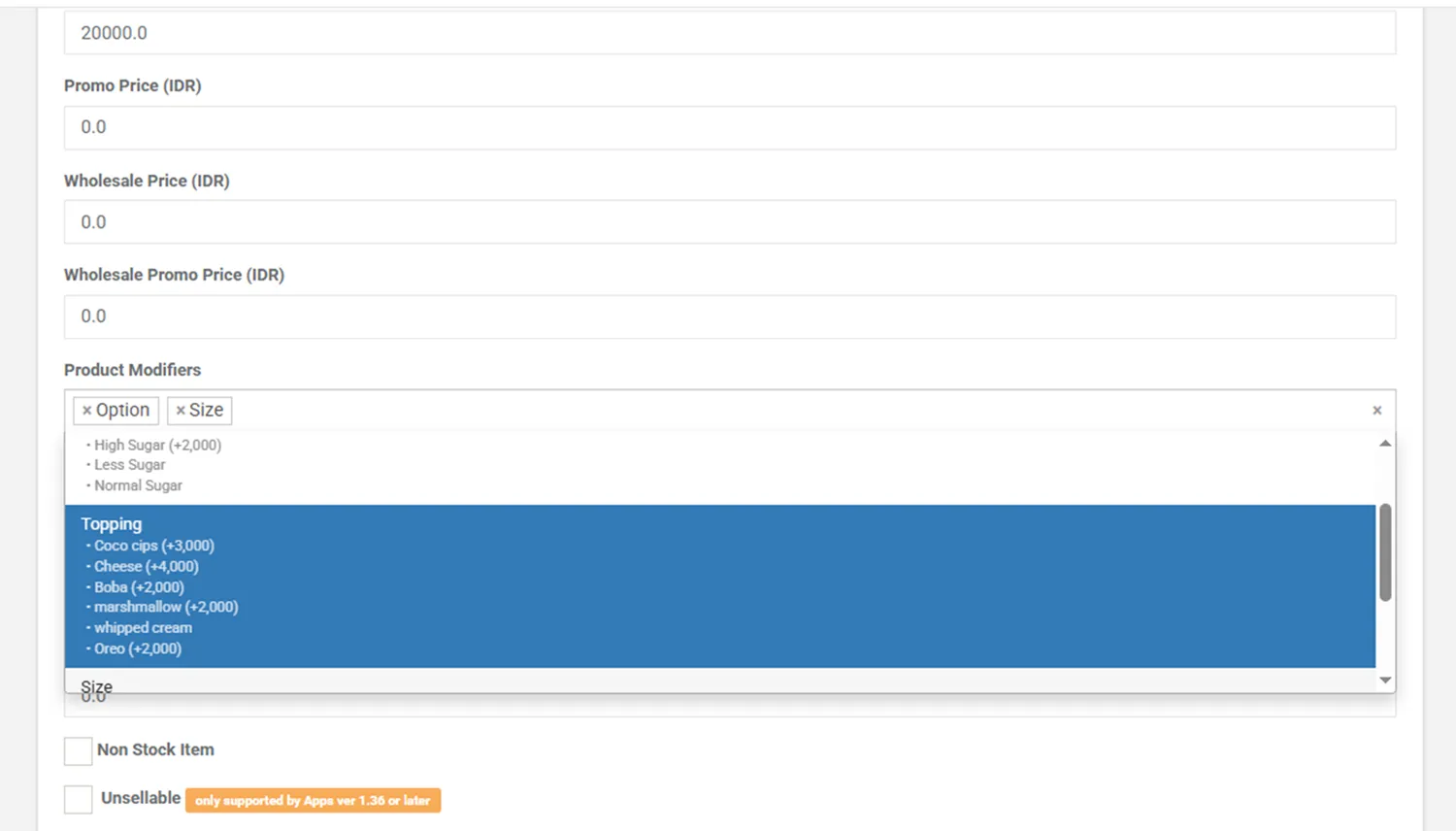
Add the product options/modifiers as needed.
NOTE:
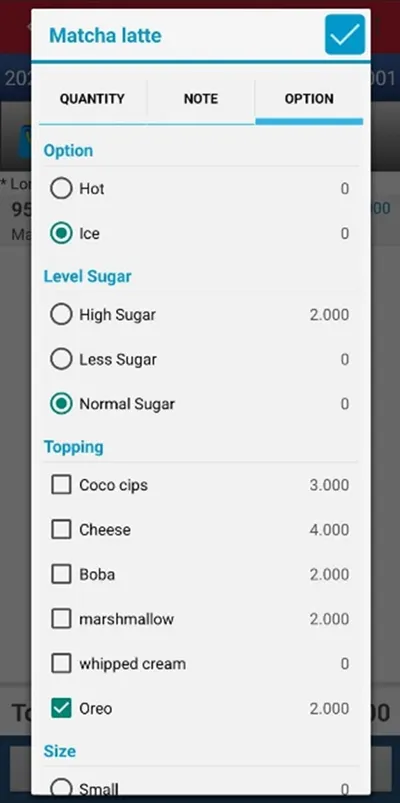
You can add more than one option at the same time, such as size choices, toppings, and sugar levels
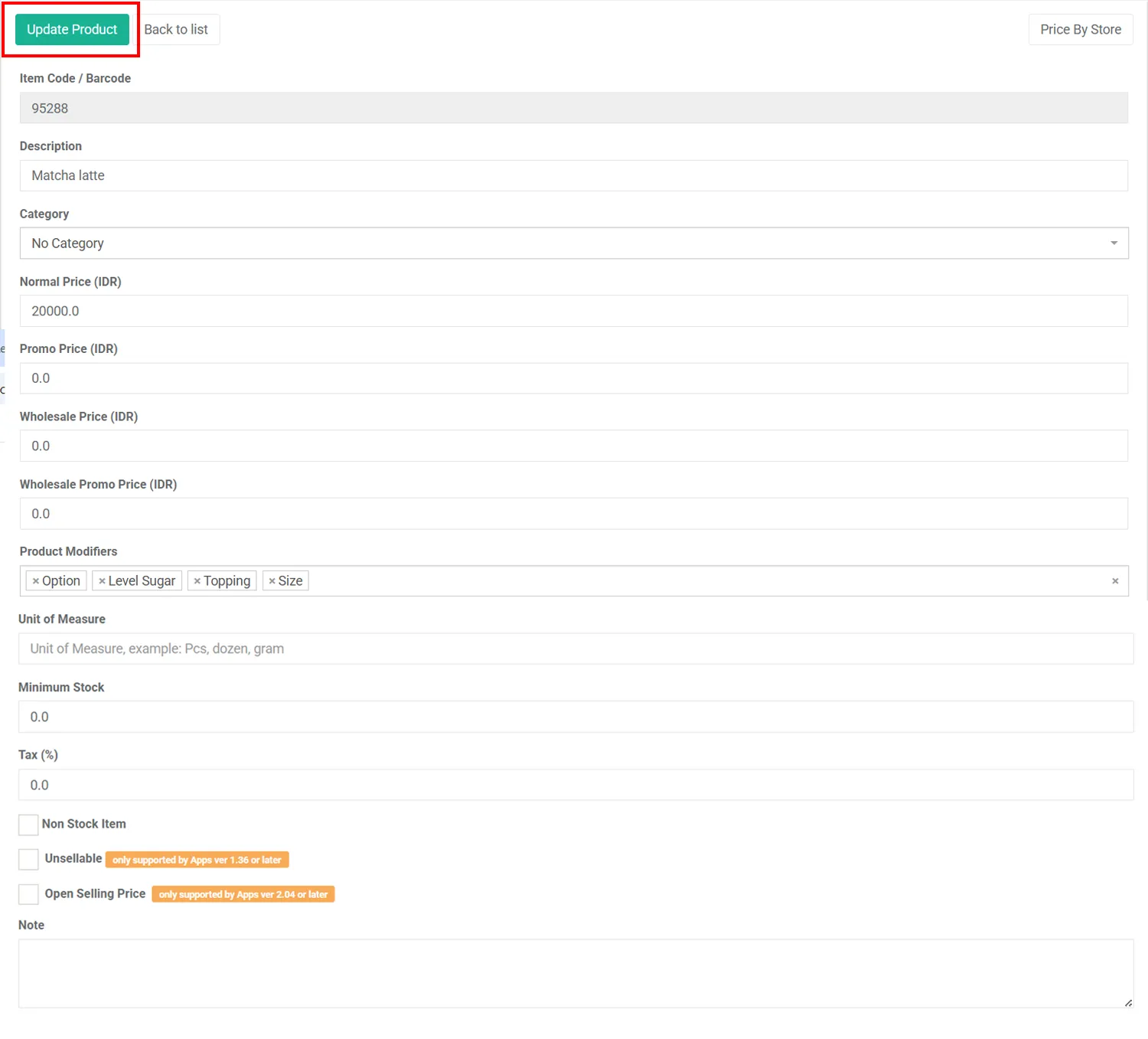
Click Update Product once you have finished adding the product options.
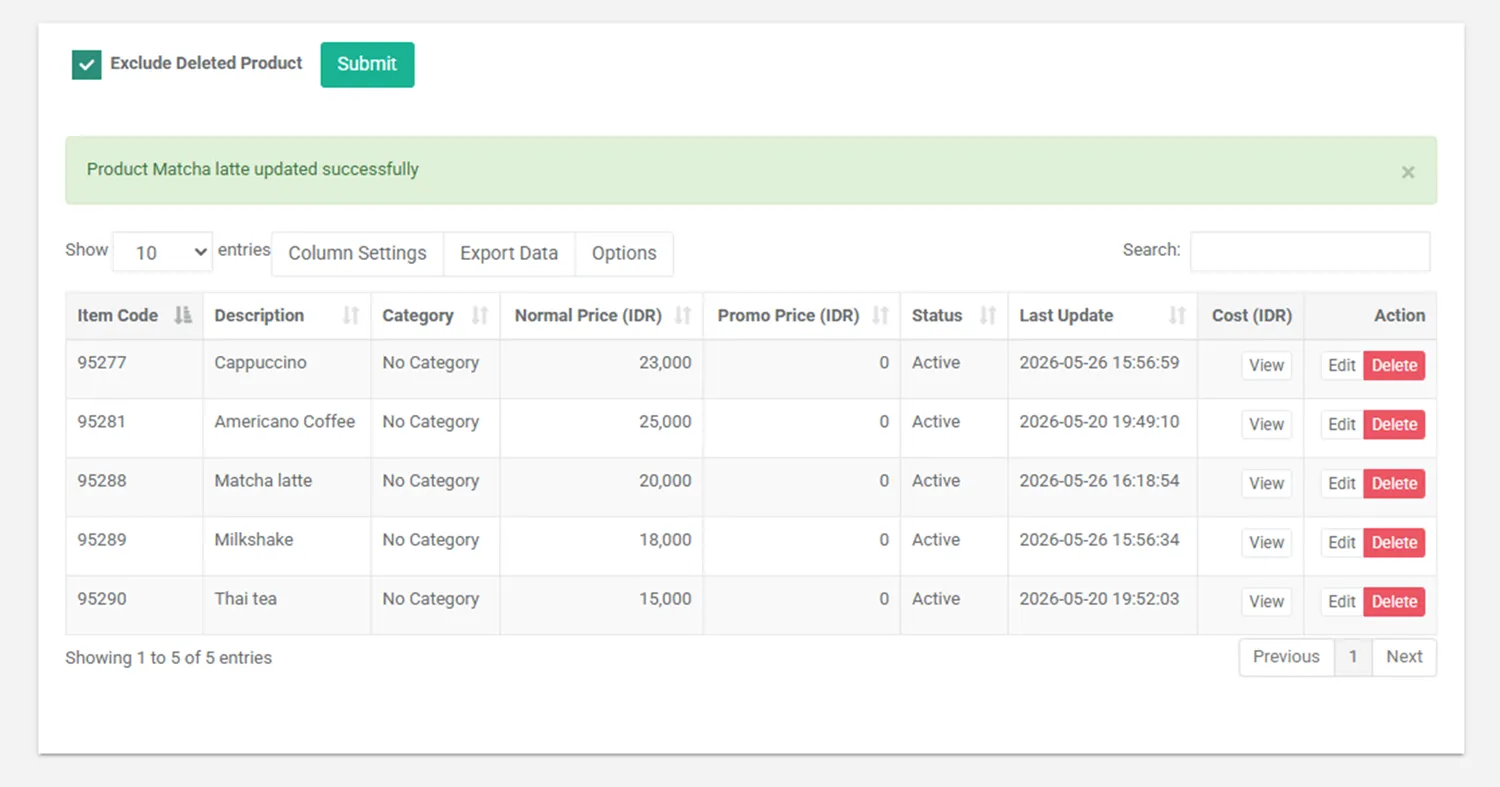
The Matcha Latte product has now been successfully updated with product options/modifiers.
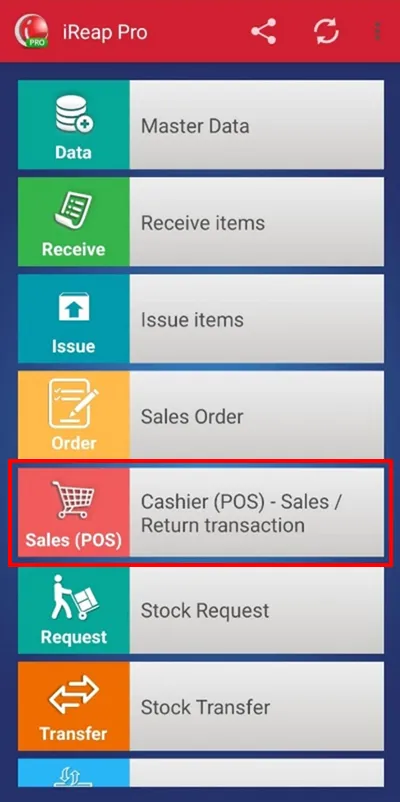
Log in to the iREAP PRO application, then go to the Cashier (POS) menu > Sales/Return Transaction as usual.
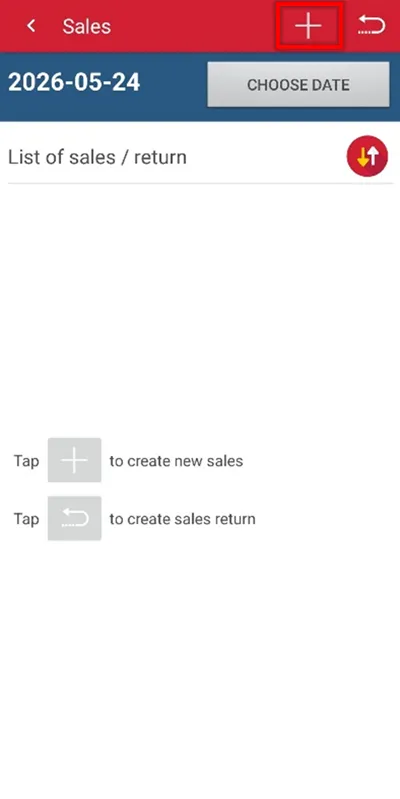
Add a new sales transaction by clicking the Plus (+) button.
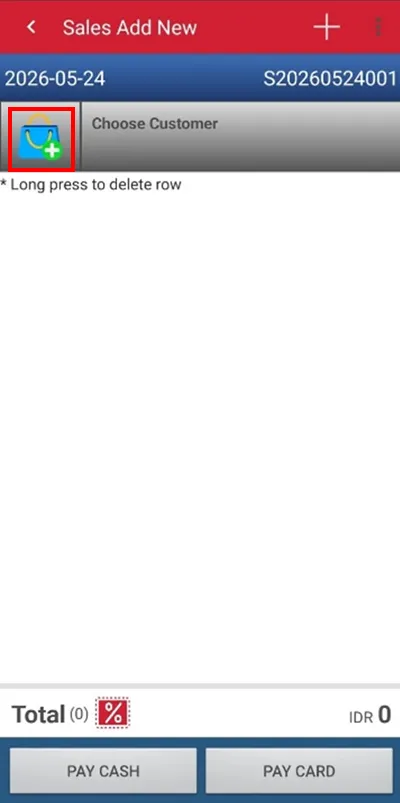
Click the Bag icon to add items, then select the ordered products.
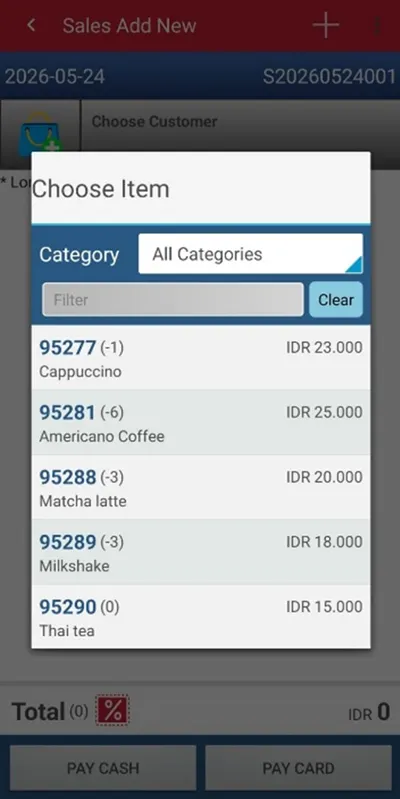
Click on the selected item, then open the Option tab.
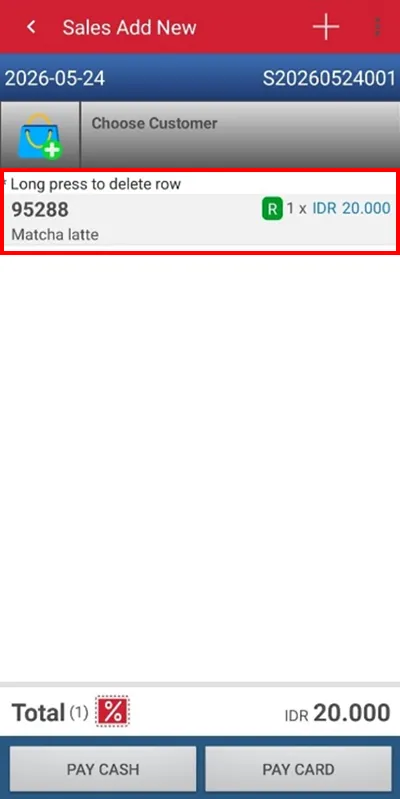
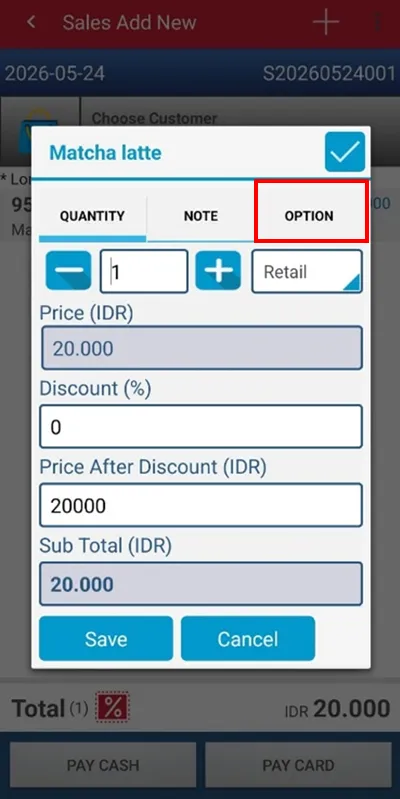
In this step, you can choose the item options/modifiers as needed.
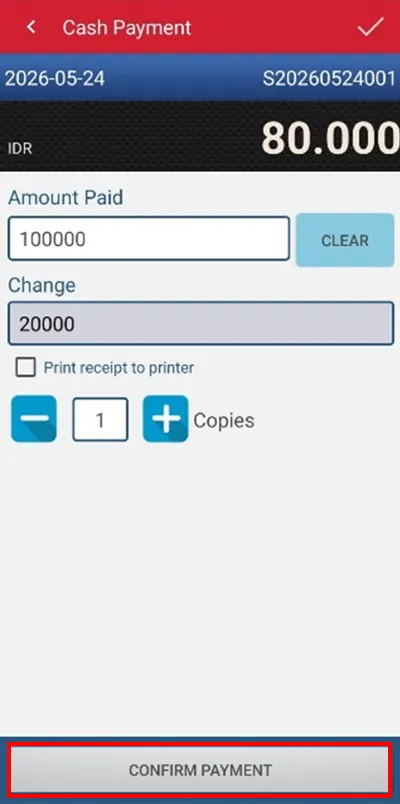
Once the options have been added, select the payment method and confirm the payment as usual.
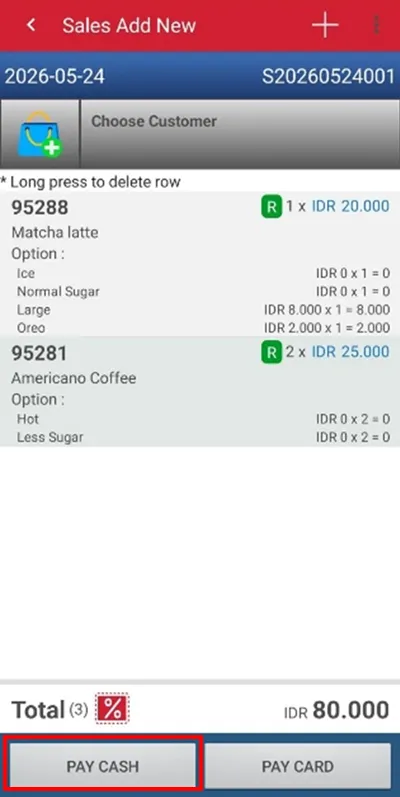
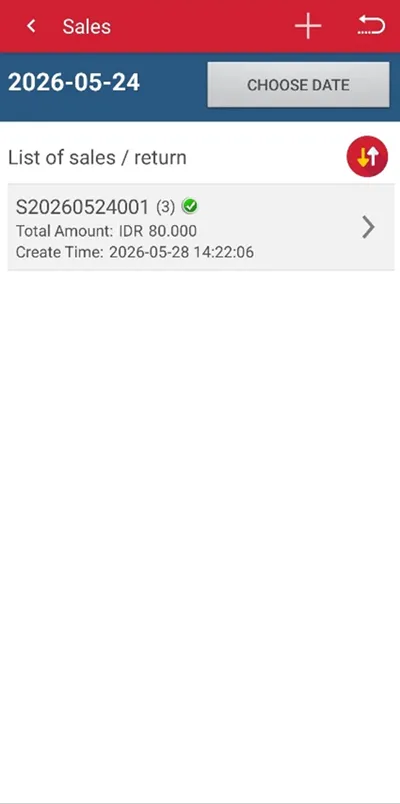
The sales transaction has been successfully saved.
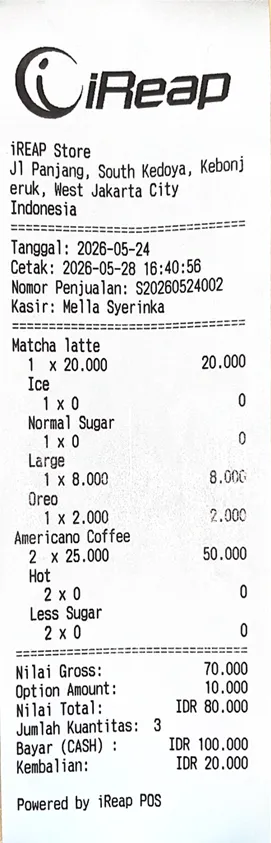
Below is the receipt preview.
iREAP POS : iREAP stand for Integrated Retail Application, is an application designed and developed to help you managed and run store operation, consists of Point of Sale / Cashier system and inventory control system.